Your next reliable connection is easier to shape than you think. A few smart choices can keep work, family, and fun online no matter where you land.
Mobile hotspots are more than a backup plan. With the right setup, you can turn almost any place into a steady Wi‑Fi zone.
1. Pack a “Phone-to-Wi‑Fi” Hotspot Kit
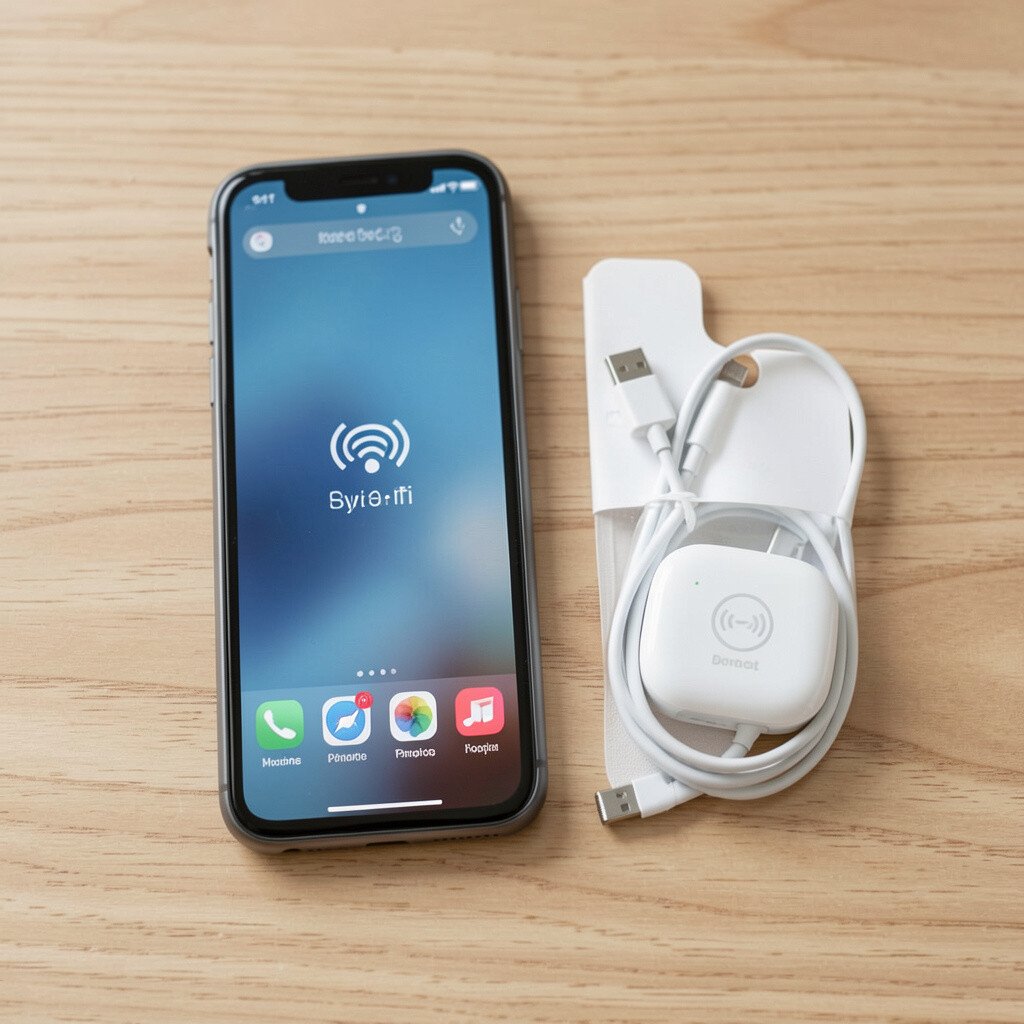
Start with the simplest option: your phone as a hotspot. When you imagine a small glowing icon on your screen, picture a pocket-sized bridge between cellular data and every device around you.
Use it for quick meetups, travel days, and temporary workspace moments. Keep battery healthy by enabling low power mode and carrying a compact charger with the correct cable for your phone.
2. Choose a Router That Fits Your Lifestyle
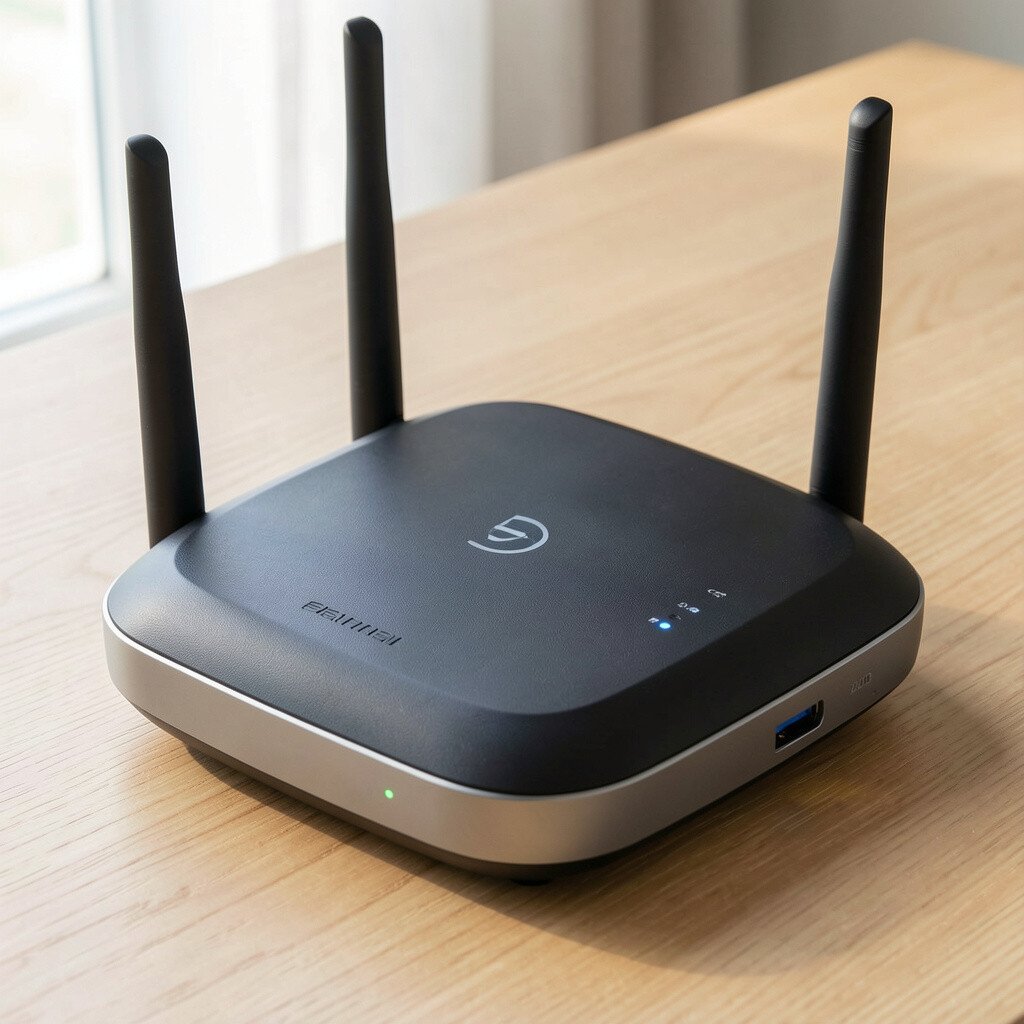
A dedicated mobile router can feel like a tiny home base. You’ll see a neat little device with indicator lights, and that steady glow makes the whole setup feel calm and reliable.
Many models support multiple connections at once, which helps when friends or family join. Look for features like strong signal antennas, easy pairing, and a web page you can use to check usage.
For cost planning, compare monthly data plans and pay-as-you-go options. If you travel often, a device with longer battery life can reduce the need for extra power gear.
3. Add a Portable Power Bank for “All-Day Mode”
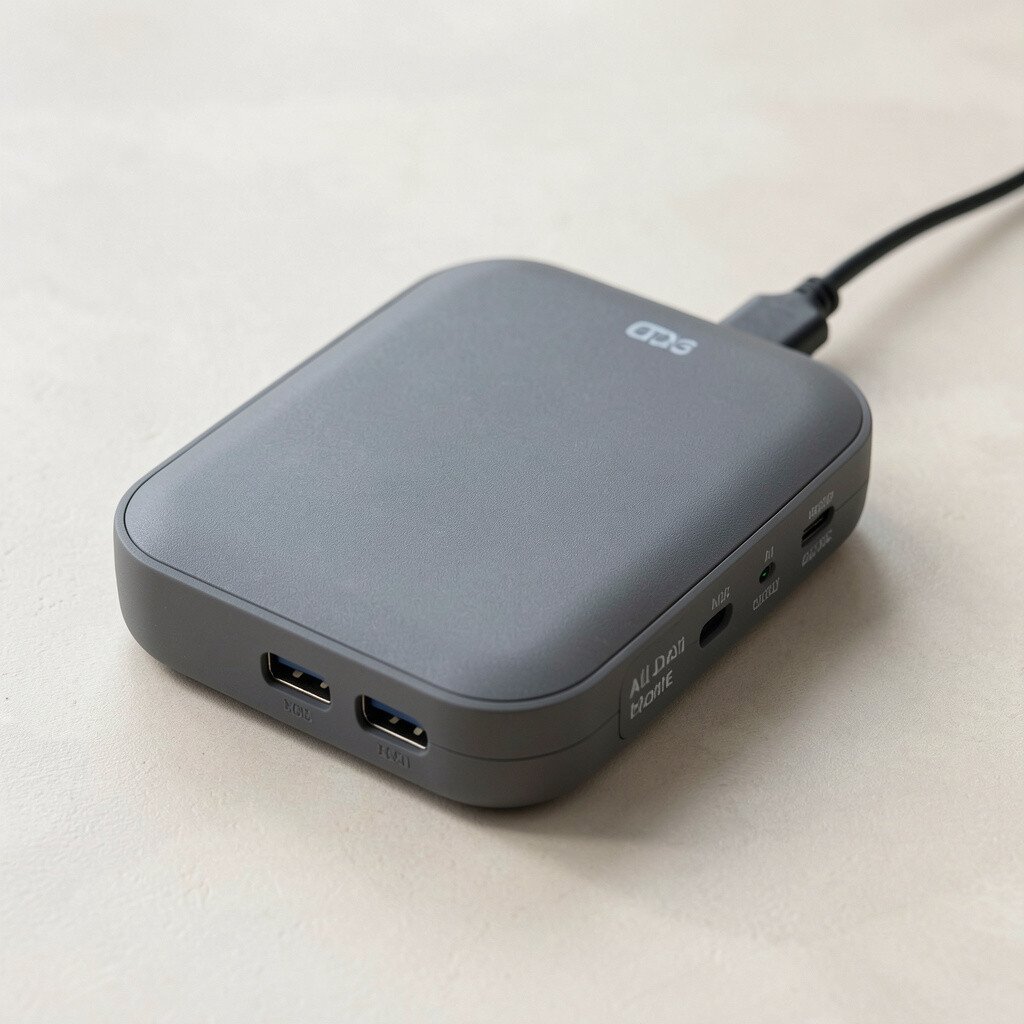
Even the best hotspot can stumble when power runs low. Picture a power bank stacked with your router like a mini charging station in your bag.
Power for your phone and router together means you can work through delays, long drives, or a full afternoon at a café. Use cables that stay secure and avoid loose adapters, since shaky connections can drop your signal.
4. Use a Travel-Sized Wi‑Fi Password Strategy
Your hotspot should be easy to share, but not at the cost of safety. Think of a simple label on paper or a saved note on your phone that’s ready when someone asks.
Set a unique network name and a strong password, then change it whenever you give access to new people. It also helps to turn off guest access when you’re using the hotspot just for your own devices.
5. Pick the Right Location for Strong Signal
Wireless quality can change fast just by moving a few steps. You might notice your laptop screen icons jump from one bar to several when you step toward a window.
Try standing near open areas, higher floors, or spots with fewer walls. If you’re outside, face the direction of stronger cellular coverage and keep your router elevated on a bag or backpack.
This small movement often saves time, since less buffering means you can get back to tasks quicker. If you’re budgeting, remember that better signal can help you use less data for the same activity.
6. Share Hotspot Wisely With a “Small Circle” Rule
Sharing can be great, but uncontrolled access turns your data into a countdown clock. Imagine a group of devices connecting, each one slowly drawing power and bandwidth.
Create a “small circle” by sharing only with people you trust. When you can, schedule access by time, then turn the hotspot off after the moment is done.
7. Monitor Data Use So You Don’t Get Surprised
Nothing feels worse than finishing a plan and realizing your data ran out early. Your device may show usage stats, and those numbers can feel like a dashboard for your month.
Check usage in the settings menu regularly so you can adjust video quality, file downloads, or syncing. If you’re streaming, switch to standard definition, and if you’re working, limit large uploads during peak usage.
8. Enable the Most Efficient Network Settings
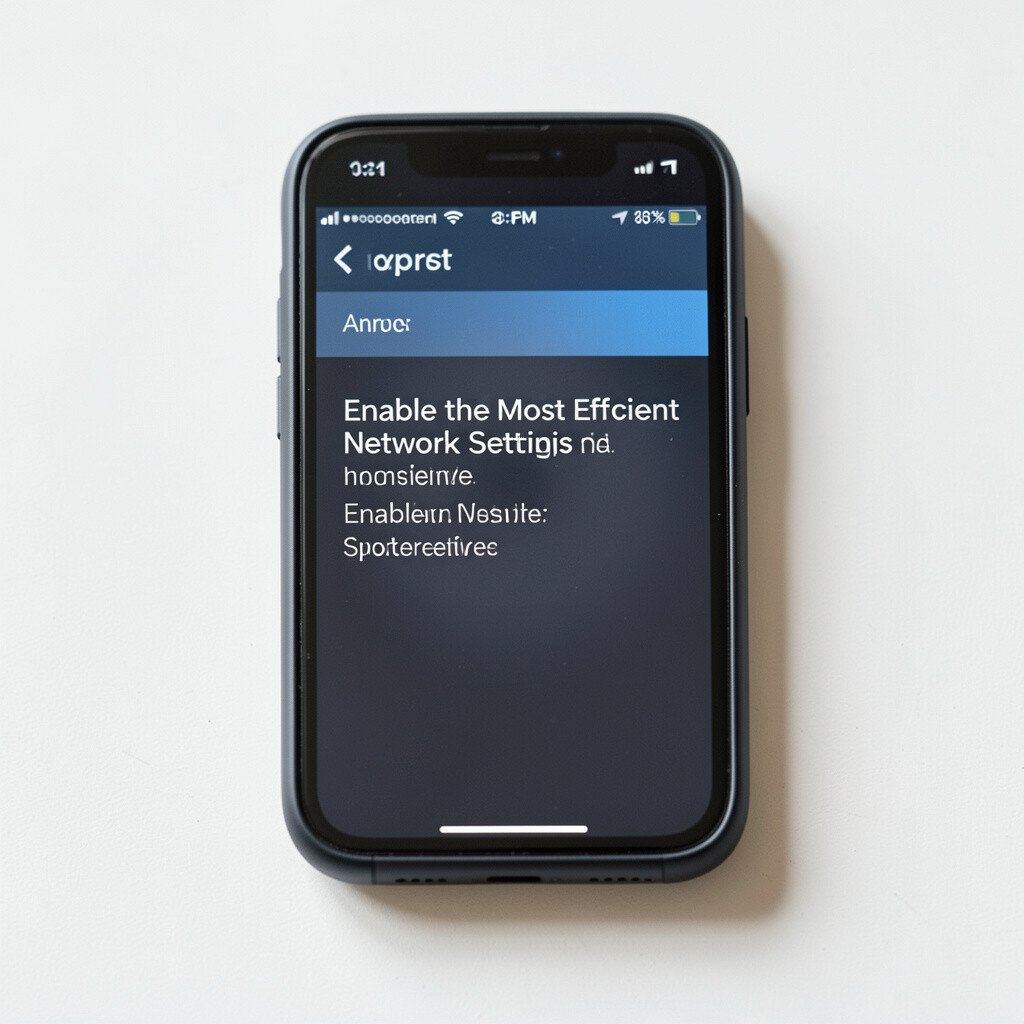
Your hotspot can behave differently depending on the network mode and device compatibility. You’ll often see options for bands or preferred frequency, and choosing well can make speeds feel smoother.
Use the band your devices handle best, and keep your firmware updated for better stability. Turn on security settings that protect your network, because a safer setup also tends to stay more reliable.
9. Use an Offline-First Workflow for Big Tasks
Staying connected everywhere doesn’t mean everything must be online all the time. Picture your notes app and documents quietly working in the background while the hotspot rests.
Download maps, save files, and pre-load content before you leave Wi‑Fi. When you must upload, do it in batches so your data usage feels predictable and manageable.
This strategy helps you keep momentum during weak signal moments. It also reduces stress, since you won’t rely on constant buffering to finish a task.
10. Try Multi-Device Hotspot Setup for a Crew
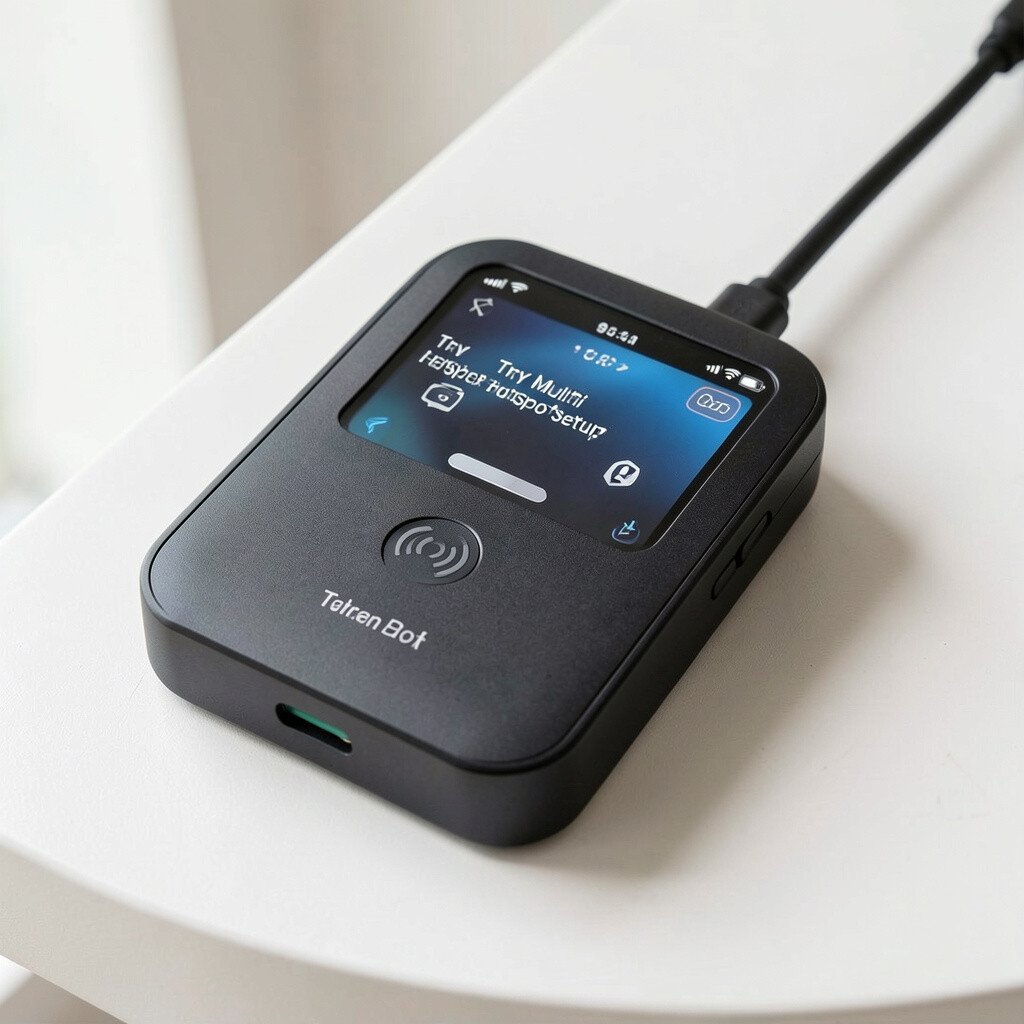
If more than a couple people need internet, one hotspot can be enough with the right planning. You’ll see multiple devices connect, and the room suddenly feels like a mini command center.
Choose a hotspot device with enough capacity for your group, then test speeds before you arrive somewhere important. Set expectations with your crew about what tasks need high bandwidth and what tasks can wait.
11. Consider a Dual-SIM Plan for More Options
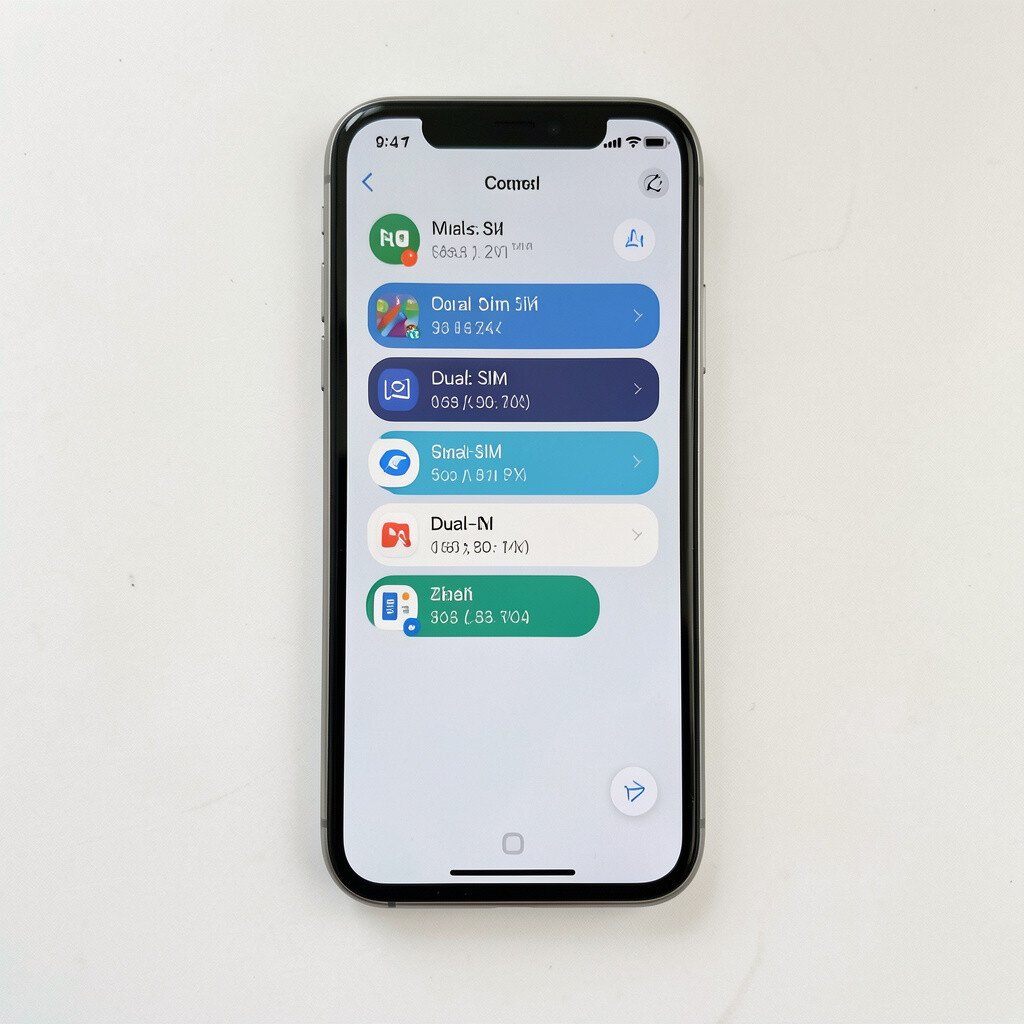
Network coverage varies by location, and a single carrier can’t always win everywhere. With dual-SIM, you can switch connections when your area favors another network.
Try testing both options in the places you visit most, like your usual commute, weekend hangouts, and favorite work spots. Cost matters here too, so compare data pricing and roaming rules to avoid surprises.
When you find a reliable pairing, you’ll feel more confident stepping out without worrying about signal strength. It’s one of the simplest ways to make connectivity feel consistent.
12. Pack a “Connectivity Check” Routine
A quick routine can prevent rushed troubleshooting. Think of it like a short warm-up before a meeting, where you verify your network name, password, and signal before you sit down.
Restart your hotspot device if it seems slow, then reconnect your devices in the right order. If you keep a tiny checklist in your notes app, you’ll avoid forgetting steps when you’re tired or on the go.
13. Personalize the Hotspot Name for Faster Sharing
A thoughtful network name saves time and reduces confusion in shared spaces. You might choose something fun and clear, like the name of your trip or your team’s meeting room theme.
Personalization also helps you avoid connecting to the wrong network when multiple hotspots are nearby. Keep it simple so it’s easy to read, and avoid names that reveal personal info.
If you’re working with clients, use a neutral name so your setup feels professional. You can also pair the name with a saved password approach so sharing stays quick and smooth.
14. Use Signal Boosting Habits for Better Speeds
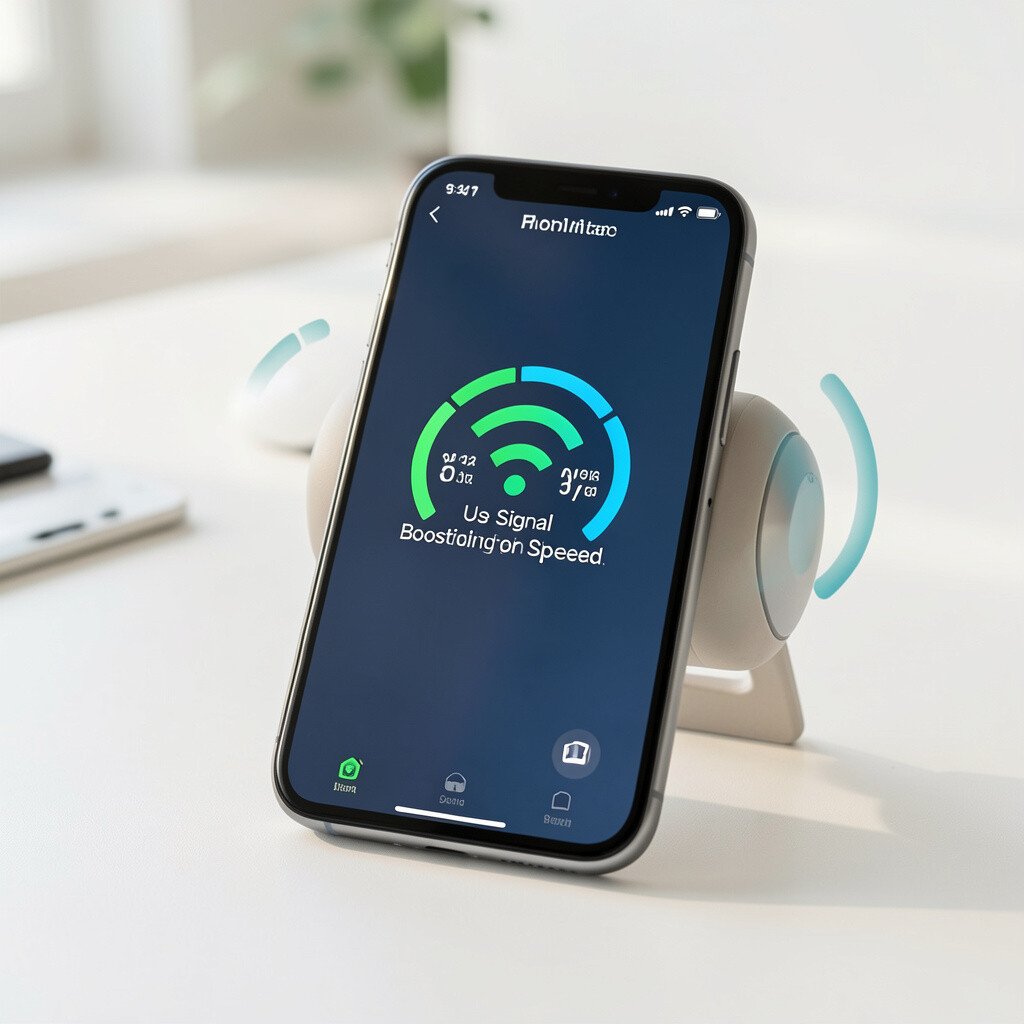
Your hotspot can be picky about placement, and tiny habits can make it behave better. Try keeping it away from metal objects, bags full of chargers, and thick walls.
Visualize your router as a small lighthouse, best when it has a clear line to the surrounding air. When you can, place it higher and let the device breathe rather than hiding it under clothing.
These practical moves can improve speeds without extra spending. Over time, you might even use less data because pages and files load with fewer retries.
15. Consider Smart Bandwidth Choices for Streaming and Calls
Streaming and video calls can use far more data than simple browsing. You’ll notice this most when a video thumbnail loads quickly, then stutters when bandwidth gets tight.
Set call apps to Wi‑Fi and use stable quality settings when possible. For video, lower the resolution, and for music, switch to cached offline playlists when you can.
This helps you stay connected longer on a limited plan. It also fits current trends toward adaptive streaming, where the best choice is often letting the app adjust rather than forcing maximum quality.
16. Keep a Backup Path When Your Hotspot Fails
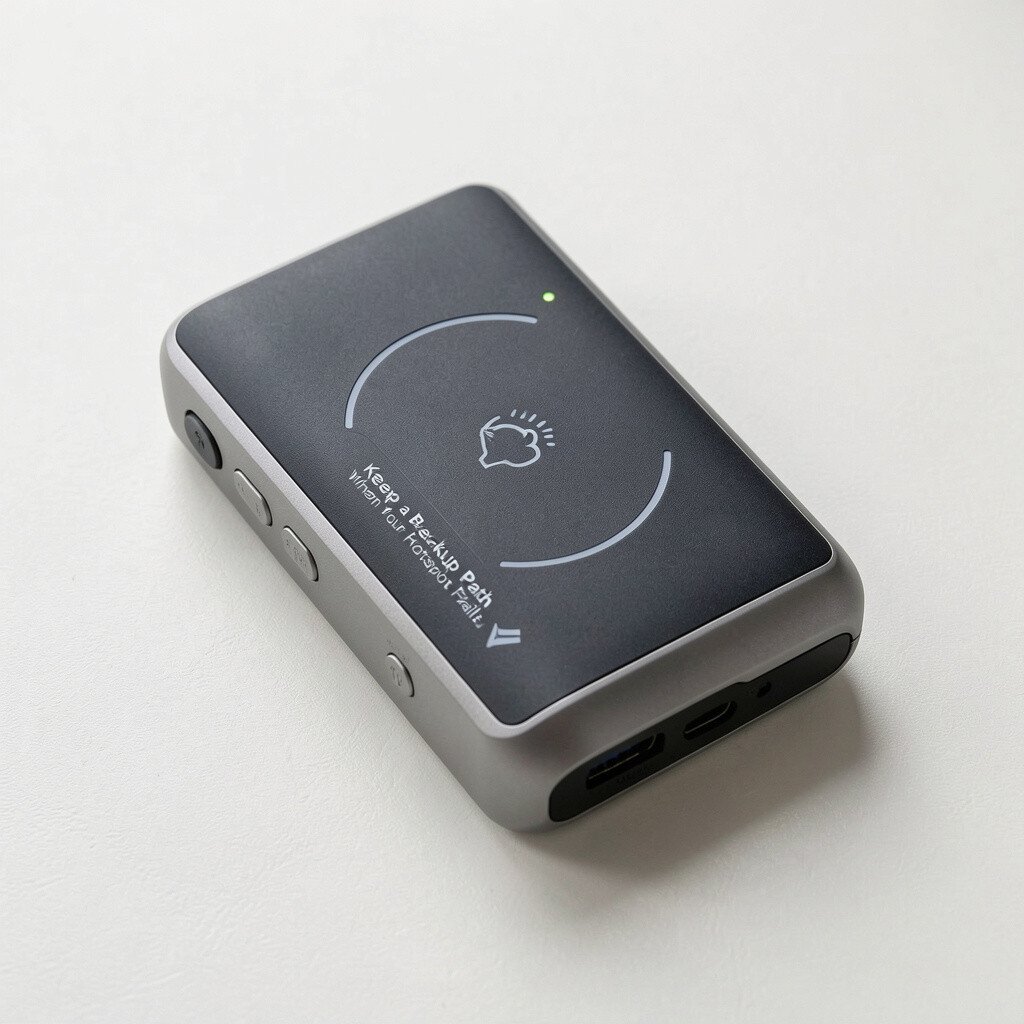
Even a great setup can fail when a network gets crowded or signal dips. So it helps to plan a second way to get online, like switching phones or trying another SIM.
Keep your eSIM or SIM options ready, along with the cables and power you need for quick swaps. If you budget carefully, this backup can prevent last-minute purchases and help you avoid downtime during important moments.
For personalization, store backup steps as short notes so you can act fast. When you’re prepared, staying connected everywhere starts to feel less like luck and more like skill.